User Manual Overview
This manual explains how to use the ELEMNT web platform, step by step. Each guide covers one task, from creating a Project to bringing in data, processing it, and serving it to your own applications.
Some features described in this manual are still being built and may change. Each guide notes what is available today.
Start with the Quick Start to make your first map in a few minutes, then come back here for the details.
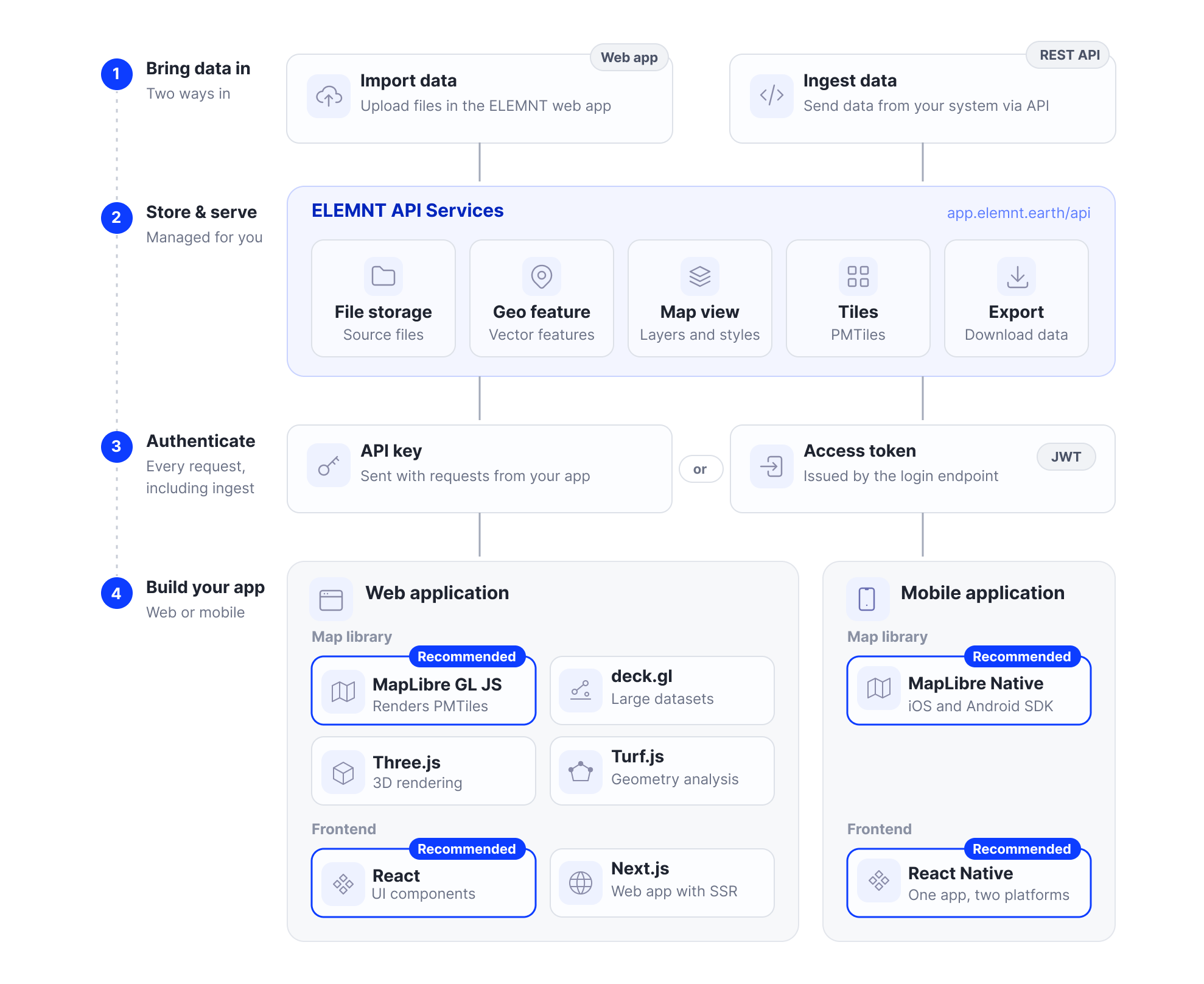
The four parts of ELEMNT
ELEMNT is built around four parts that work together. You organize your work in a Workspace, keep your datasets in Data, run tasks on them with Process, and deliver the results through API Services.
| Part | What it does | In the app |
|---|---|---|
| Workspace | Organizes your work into Projects and Views | Projects and Views in the sidebar |
| Data | Stores and manages your datasets | Collections in the sidebar |
| Process | Imports data, exports data, and builds map tiles | The Jobs panel |
| API Services | Serves your maps and data to other applications | The Integrate panel and API keys |
Workspace
- Projects group the data and maps for one piece of work.
- Views are maps inside a Project. Each View is made of layers that you can add, reorder, and style.
Data
Every dataset in ELEMNT is stored as a Collection. Once a Collection exists, you can add it to any View as a layer.
Process
Process is where ELEMNT does work on your data. It follows the OGC API – Processes standard, so every processing task runs in a consistent, open way.
Each processing tool in ELEMNT is called a Module. ELEMNT includes global Modules that everyone can use:
- Import: Bring files into ELEMNT and turn them into Collections.
- Export: Take data out of ELEMNT for use in other tools.
- Tile generation: Build map tiles so large datasets display quickly.
Every time a Module runs, ELEMNT creates a Job. The Jobs panel shows which Jobs are running and which have finished.
API Services
Every View can be used outside ELEMNT. The Integrate panel gives you ready-made endpoints, sample code for MapLibre GL JS, and the option to create an API key.
Finding your way around the app
- Sidebar: Switch between Projects, Collections, and your Views. Your profile and settings are at the bottom.
- Breadcrumb: Shows where you are, as Project / View.
- Layers panel: Lists the layers in the current View.
- Map: A live preview of your View.
- Side panel: Follow your Jobs, or open Integrate to use the View in other applications.